ClipDashcam for Tesla app icon

ClipDashcam for Tesla

Open saved TeslaCam clips on iPhone or iPad, trim the section you need, combine the camera views, and export one MP4.

저장된 TeslaCam 클립을 iPhone·iPad에서 열어 원하는 구간을 잘라 카메라 화면을 하나로 합치고 MP4로 내보내는 앱입니다.

Coming soon to the App Store — ClipDashcam for TeslaApp Store 출시 예정 — ClipDashcam for Tesla

Requires iOS 17 or later. For iPhone and iPad.

iOS 17 이상. iPhone·iPad 지원.

Tesla is a trademark of Tesla, Inc. Sunny J Lab is not affiliated with or endorsed by Tesla, Inc.

Tesla는 Tesla, Inc.의 상표입니다. Sunny J Lab은 Tesla, Inc.와 제휴하거나 보증받은 관계가 아닙니다.

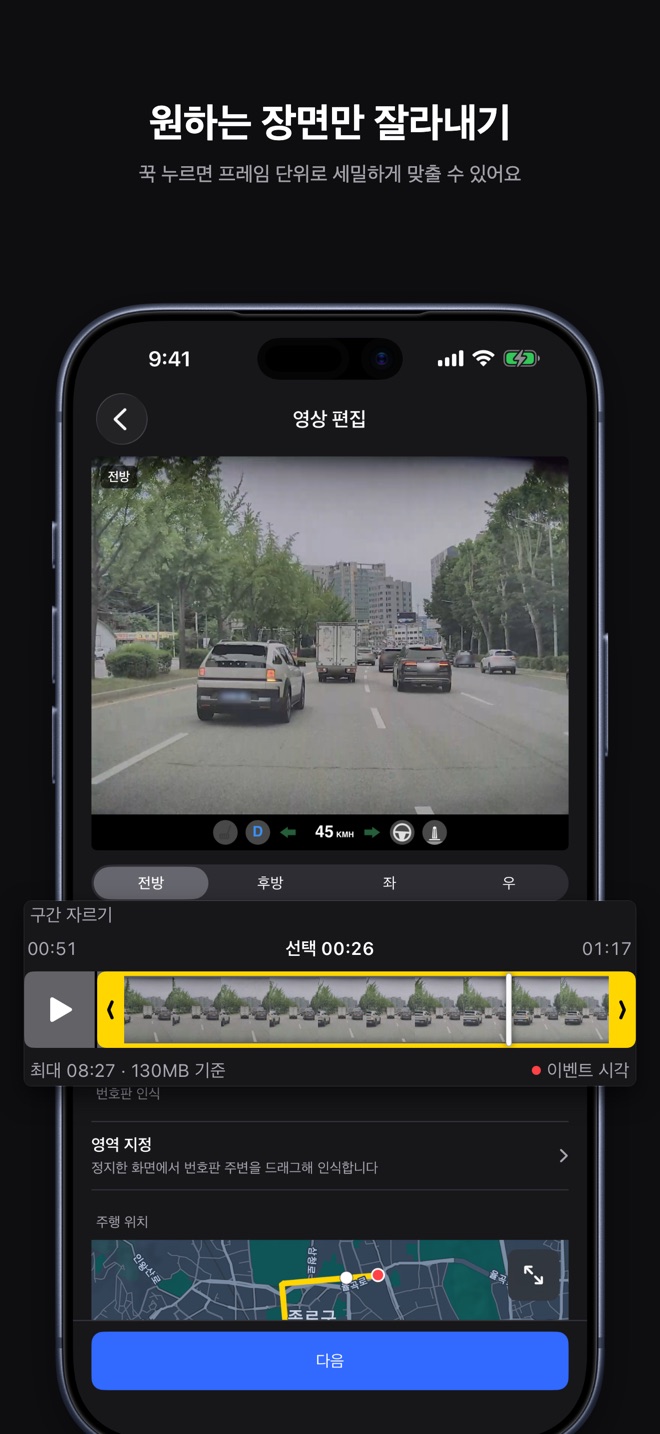
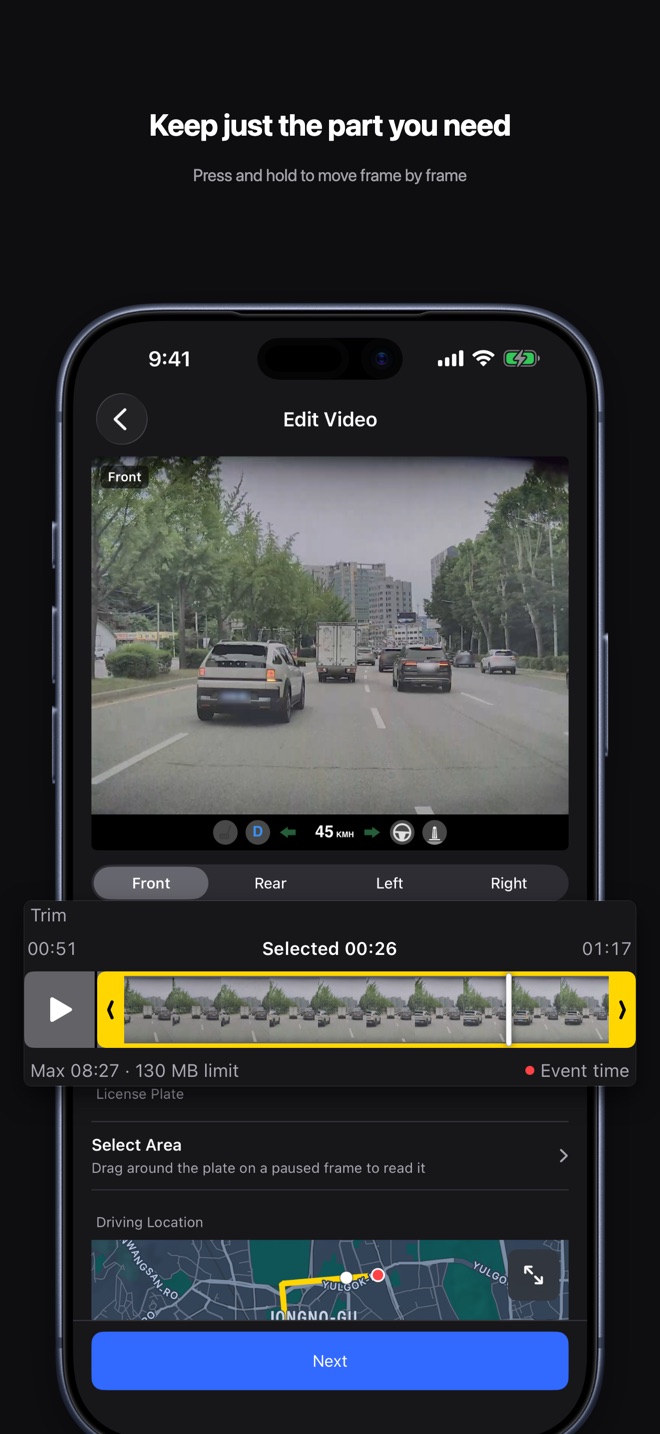
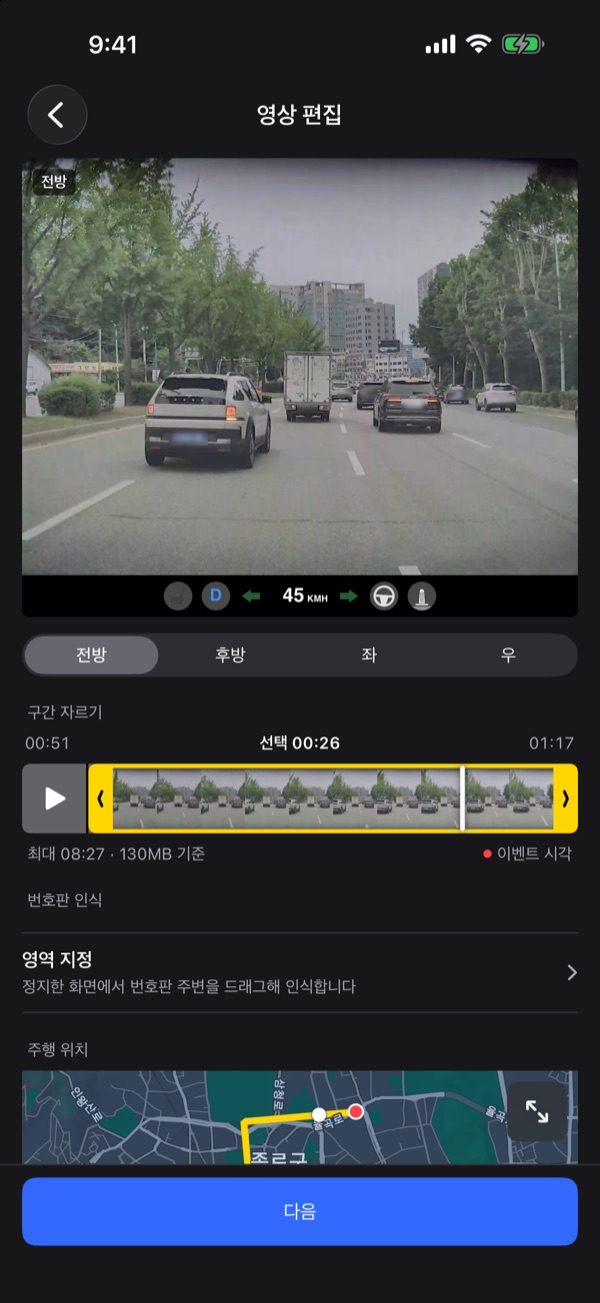
App Store screenshot: Keep just the part you need. Press and hold to move frame by frame.

Overview서비스 개요

ClipDashcam opens the event videos your vehicle saved in the TeslaCam folder. Trim a section, merge the camera views into a single video with driving info, timestamp, and location, and export it as an MP4. Encrypted events can be unlocked on the device after you connect your Tesla account.

ClipDashcam은 차량이 TeslaCam 폴더에 저장한 이벤트 영상을 여는 앱입니다. 원하는 구간을 잘라 카메라 화면을 하나의 영상으로 합치고 주행 정보·일시·위치를 새겨 MP4로 내보냅니다. 암호화된 이벤트는 Tesla 계정을 연결해 기기 안에서 풀어 볼 수 있습니다.

  1. Pick the TeslaCam folder on your USB drive.USB 드라이브의 TeslaCam 폴더를 선택합니다.
  2. Pick an event and set the section to keep. Plate recognition is optional.이벤트를 고르고 내보낼 구간을 정합니다. 필요하면 번호판 인식도 합니다.
  3. Choose a layout and the main camera, then start the merge.레이아웃과 메인 카메라를 고르고 병합을 시작합니다.
  4. Save or share the merged video as an MP4 sized for the 130 MB limit.130MB 한도에 맞춘 MP4로 저장하거나 공유합니다.

What it does되는 것

  • Opens events saved in SavedClips, by date.SavedClips에 저장된 이벤트를 날짜별로 보여 줍니다.
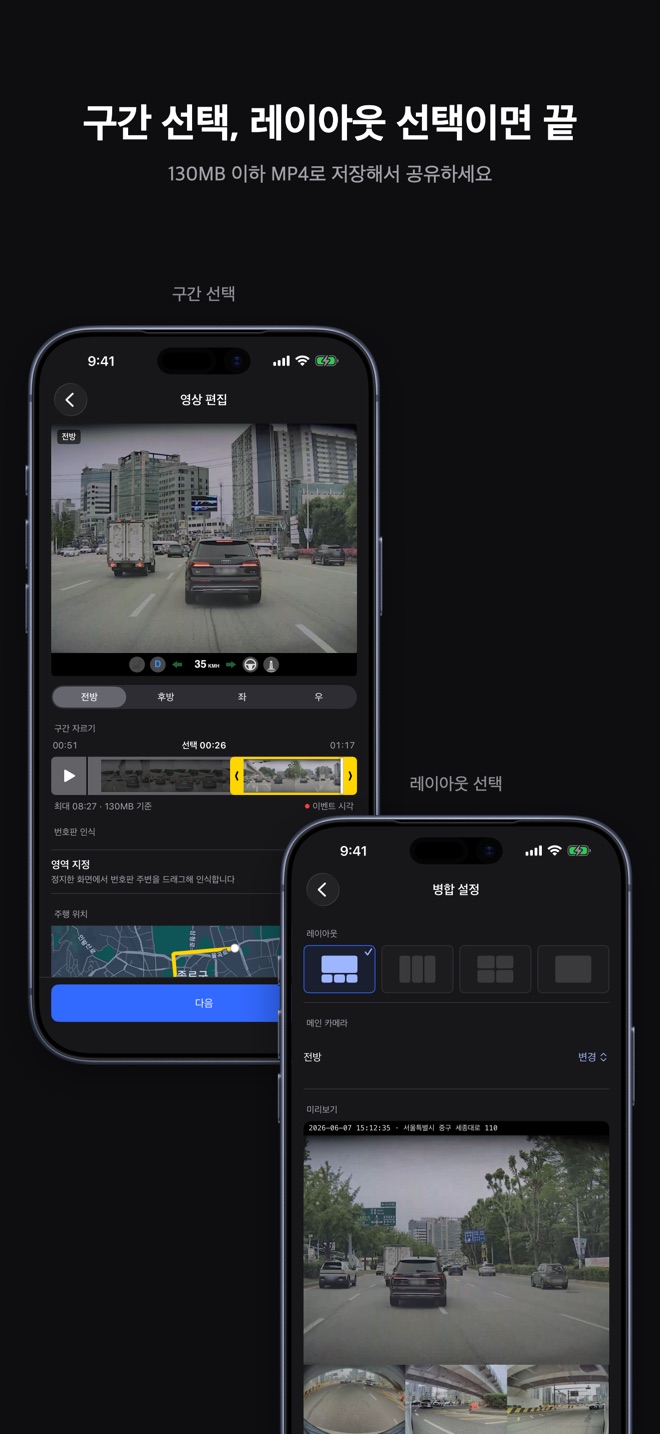
  • Trims a section and merges up to four cameras (front, rear, left, right) in four layouts.구간을 잘라 전방·후방·좌·우 카메라를 네 가지 레이아웃으로 합칩니다.
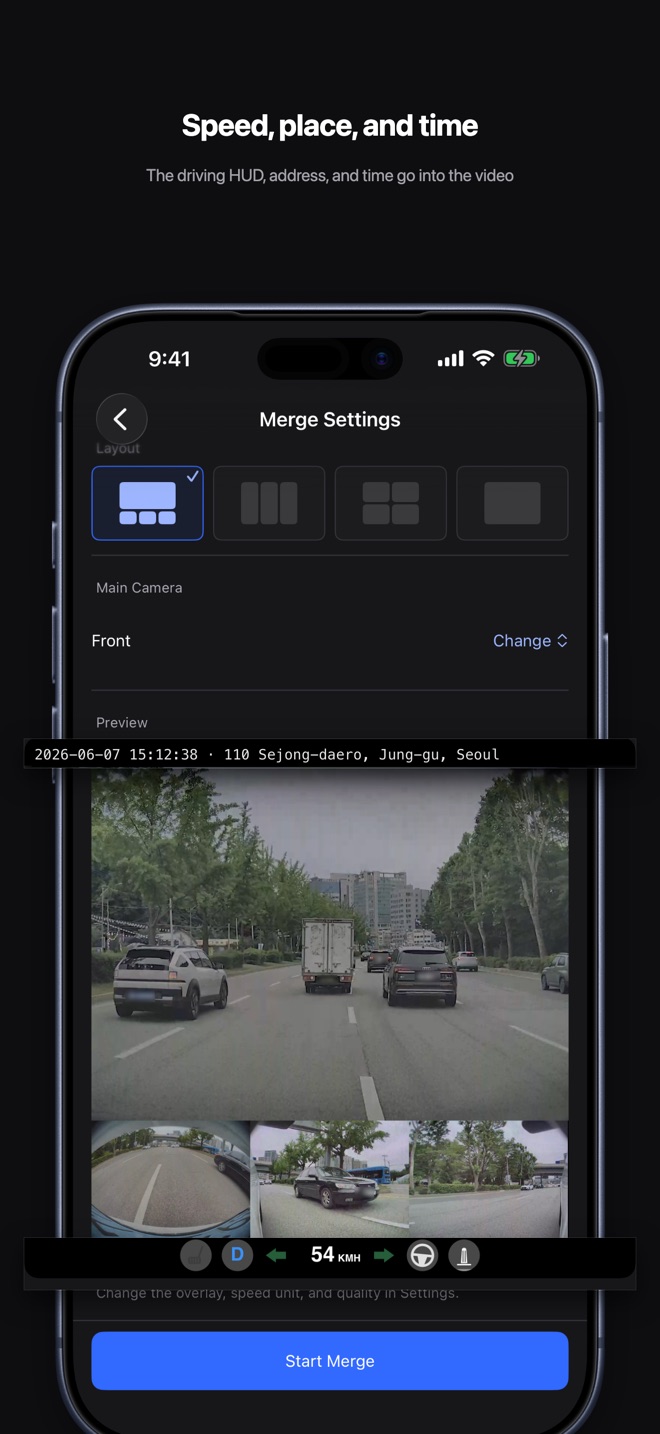
  • Burns the driving HUD, timestamp, and location into the exported video.주행 HUD·일시·위치를 내보낸 영상에 새깁니다.
  • Reads a license plate in the area you drag, on the device (Korean plate formats).드래그로 지정한 영역의 번호판을 기기 안에서 인식합니다(한국 번호판 형식).
  • Unlocks encrypted clips after connecting a Tesla account — “Beta feature, not an official Tesla feature.”Tesla 계정을 연결해 암호화 클립을 풀어 봅니다. 「Tesla 공식 기능이 아닌 베타 기능입니다.」

What it doesn’t안 되는 것

  • Open Sentry (SentryClips) or recent (RecentClips) clips.SentryClips와 RecentClips는 지원하지 않습니다.
  • Include audio in exported videos.내보낸 영상에 소리(오디오)를 넣지 않습니다.
  • File a report for you.신고를 자동으로 제출하지 않습니다.
  • Detect plates automatically across the whole frame.화면 전체에서 번호판을 자동으로 찾지 않습니다.
  • Combine multiple events into one video.여러 이벤트를 하나의 영상으로 합치지 않습니다.

What each screen does화면별 기능

Event list이벤트 목록

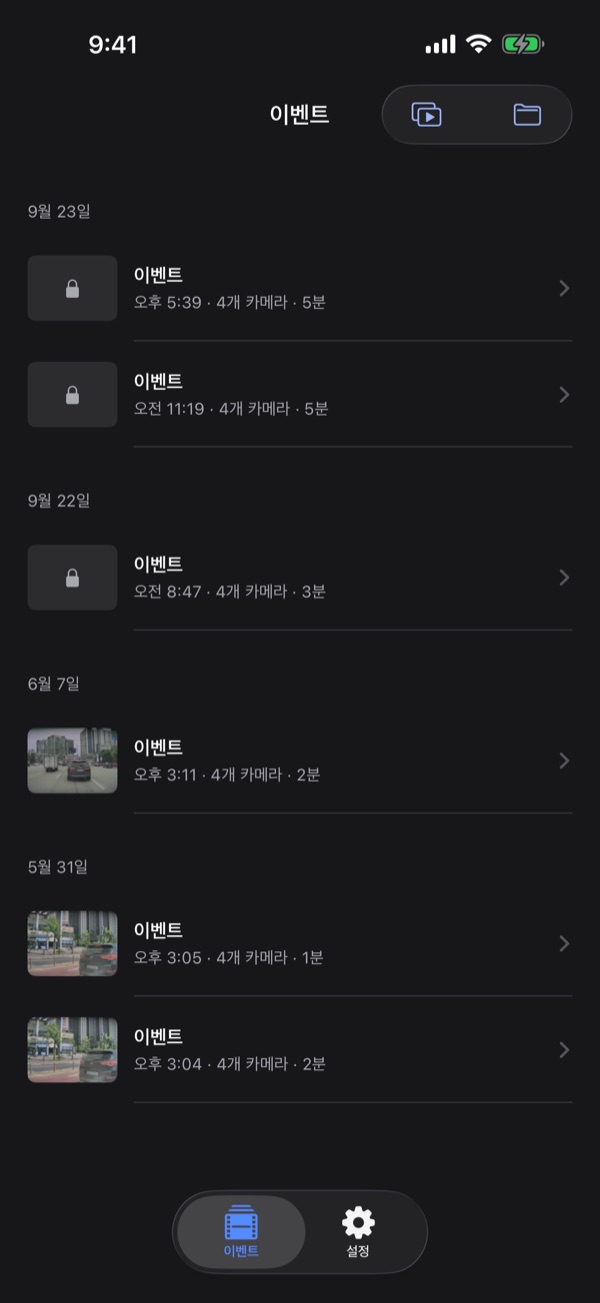
Pick the TeslaCam folder and the app lists saved events, newest first. Encrypted events show a lock instead of a thumbnail.

TeslaCam 폴더를 고르면 저장된 이벤트를 날짜별 최신순으로 보여 줍니다. 암호화된 이벤트는 썸네일 대신 자물쇠로 표시됩니다.

  • “Select Folder” opens the TeslaCam folder on your USB drive, and the app reopens it on the next launch.「폴더 선택」으로 USB의 TeslaCam 폴더를 고르면 다음 실행에서도 같은 폴더를 다시 엽니다.
  • Each row shows the event time, camera count, and length.각 행에 시각, 카메라 수, 분 수가 표시됩니다.
  • Tap a row to open just that one event.행을 누르면 그 이벤트 하나만 열립니다.
  • “Saved Videos” lists your exports, and “Change Folder” picks a different folder.「저장한 영상」에서 내보낸 영상을 보고, 「폴더 변경」으로 다른 폴더를 고릅니다.
Event list: encrypted clips shown with a lock icon alongside regular clips.

Editing a clip영상 편집

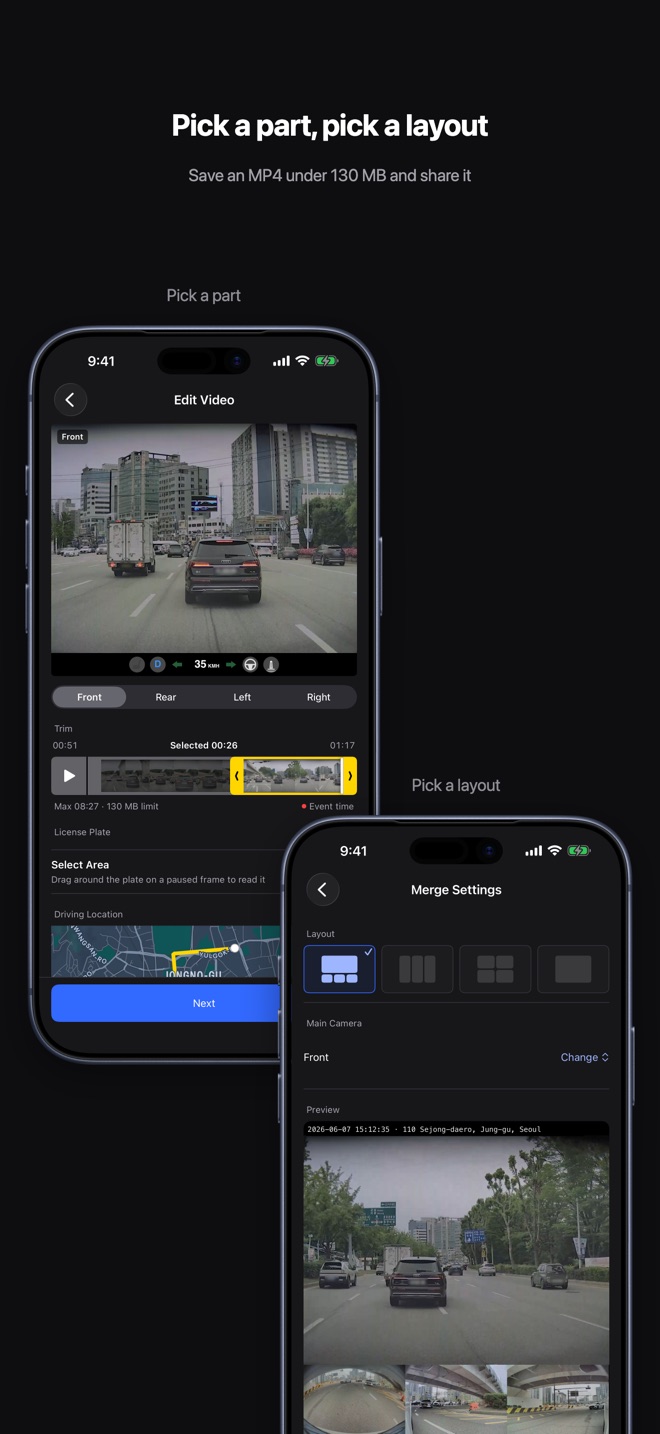
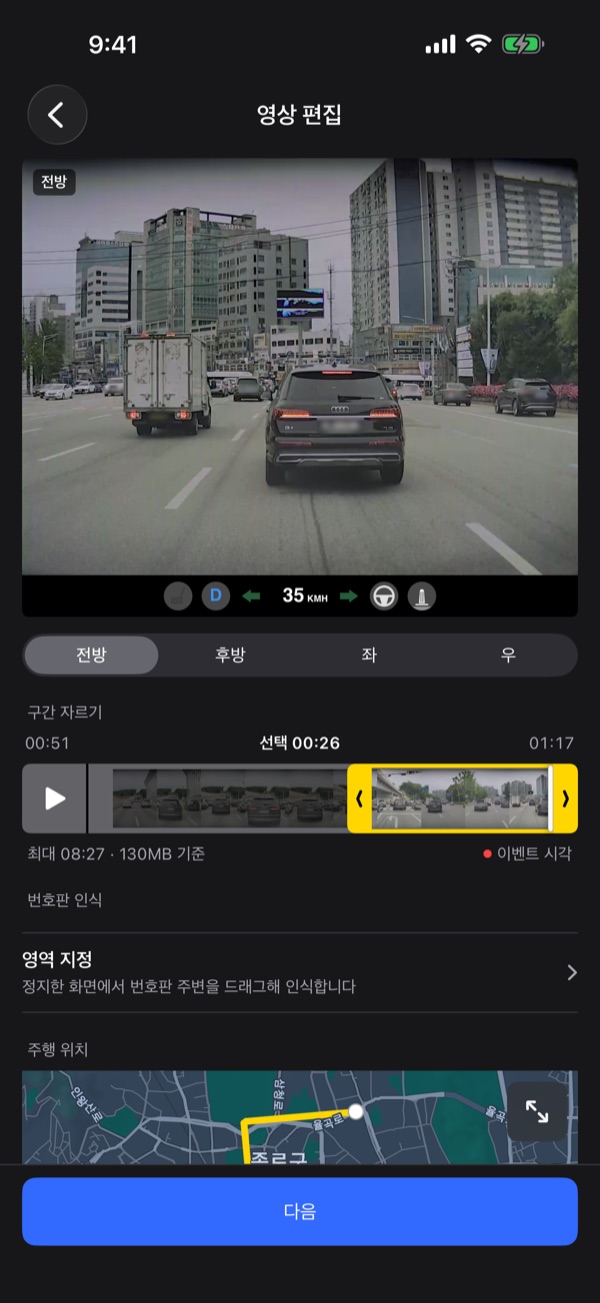
Preview one camera at a time and set the section to export. Press and hold on the filmstrip and it zooms so you can move frame by frame.

한 카메라씩 미리 보며 내보낼 구간을 정합니다. 필름스트립을 꾹 누른 채로 멈추면 확대돼 한 프레임씩 움직일 수 있습니다.

  • “Camera” switches views when the event has more than one (front, rear, left, right).카메라가 둘 이상이면 「카메라」로 전환합니다(전방·후방·좌·우).
  • The screen shows the maximum length allowed under the 130 MB limit; going over disables “Next”.130MB 기준으로 내보낼 수 있는 최대 길이를 보여 주고, 넘으면 「다음」이 꺼집니다.
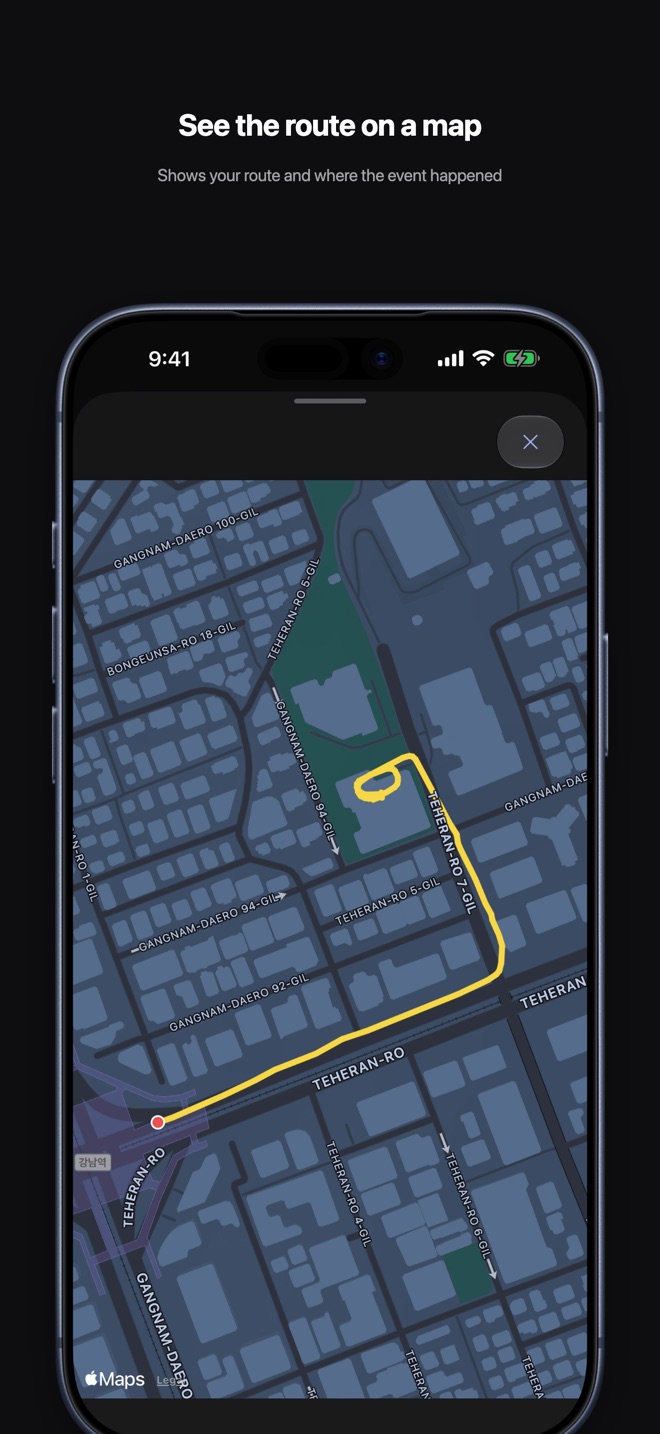
  • The event time is marked in red on the trim bar and map.「이벤트 시각」이 트림 바와 지도에 빨간 표시로 나타납니다.
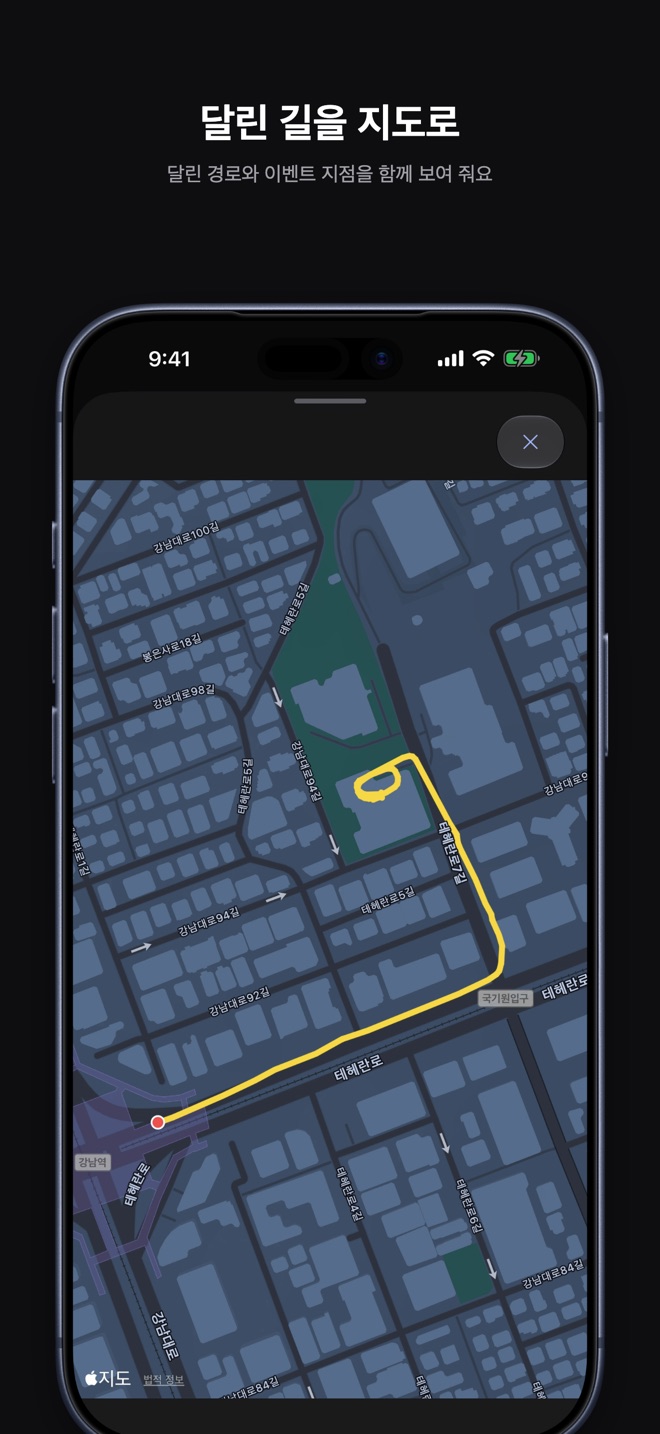
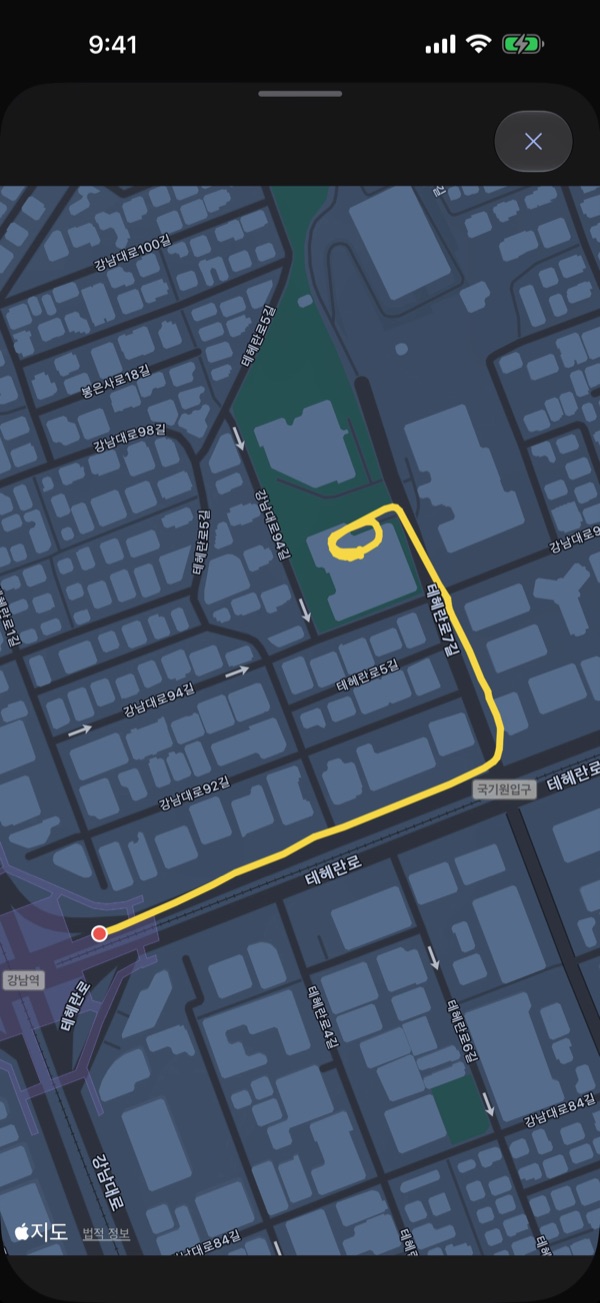
  • Clips with location show a yellow route and playback position under “Driving Location”; “Expand Map” opens it full size.위치가 있는 클립은 「주행 위치」 지도에 노란 경로와 재생 위치가 표시되고, 「지도 크게 보기」로 크게 엽니다.
  • You can skip plate recognition and go straight to “Next”.번호판 인식을 하지 않고 「다음」으로 넘어가도 됩니다.
Edit screen: front camera video, driving HUD, trim bar, plate number, and map.
Trim bar zoomed in for frame-by-frame scrubbing.
Large map: driving route and event location.
Sample screen예시 화면

Plate recognition번호판 인식

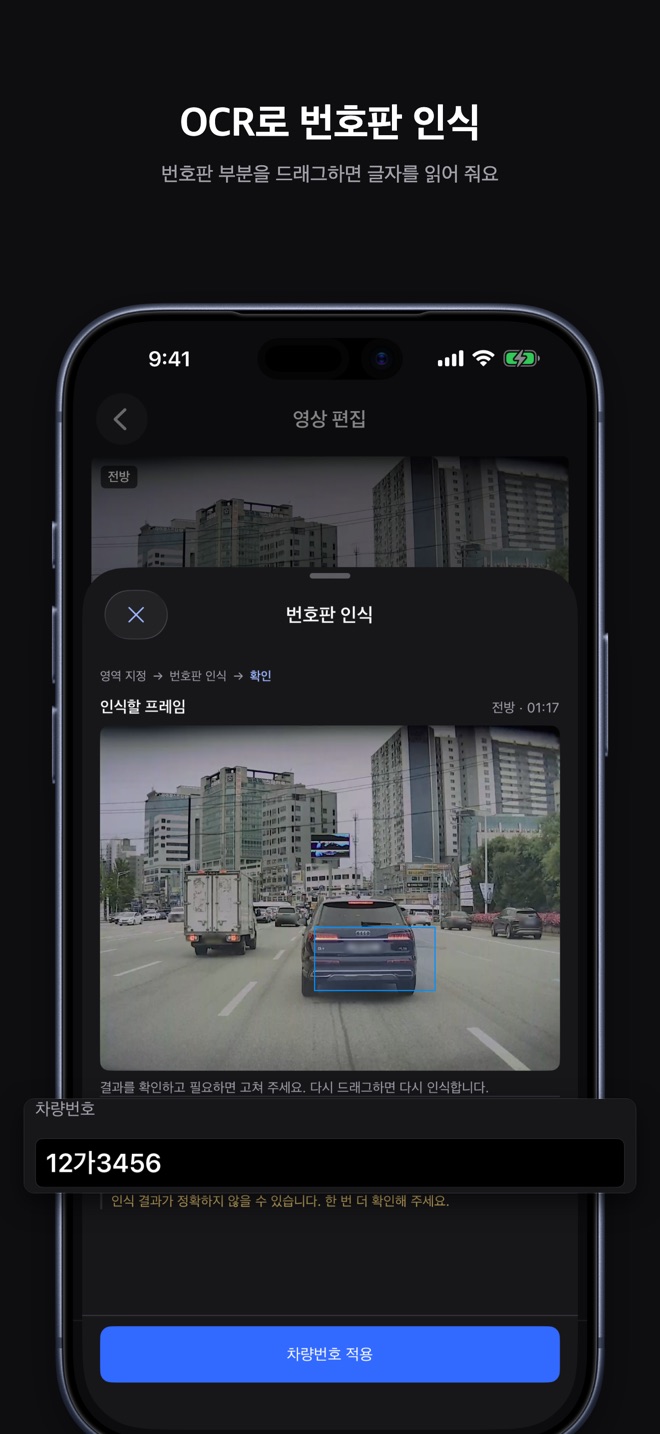
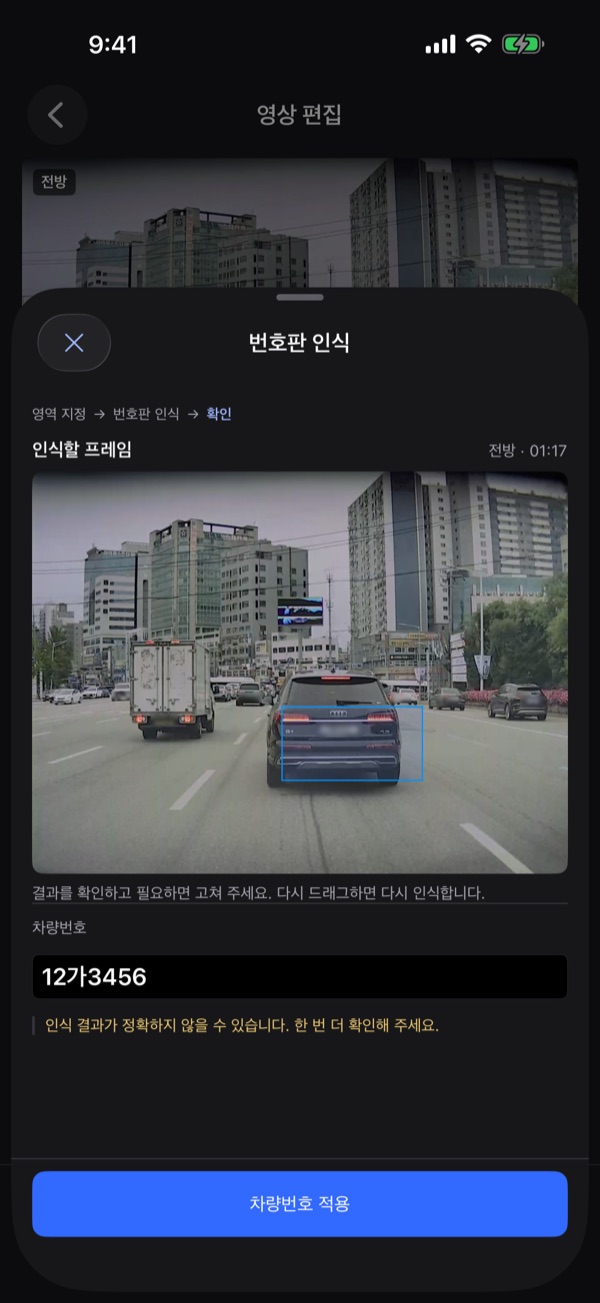
Drag around the plate on a paused frame and only that area is read, on the device. It recognizes Korean plate formats, and you can correct the result yourself.

정지한 화면에서 번호판 주변을 드래그하면 그 영역만 기기 안에서 인식합니다. 한국 번호판 형식만 지원하며, 결과는 직접 고칠 수 있습니다.

  • The steps are “Select Area” → “License Plate” → “Confirm”, then “Apply Plate Number”.「영역 지정 → 번호판 인식 → 확인」 단계를 거쳐 「차량번호 적용」으로 확정합니다.
  • Fix the number in “License plate (or enter manually)”, or pick from “Other Candidates”.「번호판 (직접 입력 가능)」으로 결과를 고치거나 「다른 후보」에서 고릅니다.
  • Uncertain results carry a warning: “The recognition result may not be accurate. Please double-check it.”인식이 불확실하면 「인식 결과가 정확하지 않을 수 있습니다. 한 번 더 확인해 주세요.」 경고가 붙습니다.
  • A confirmed plate stays on the edit screen and isn't burned into the video.확정한 번호판은 편집 화면에 남고, 영상에는 새겨지지 않습니다.
Plate recognition sheet: drag to mark the plate area, then OCR reads the number.

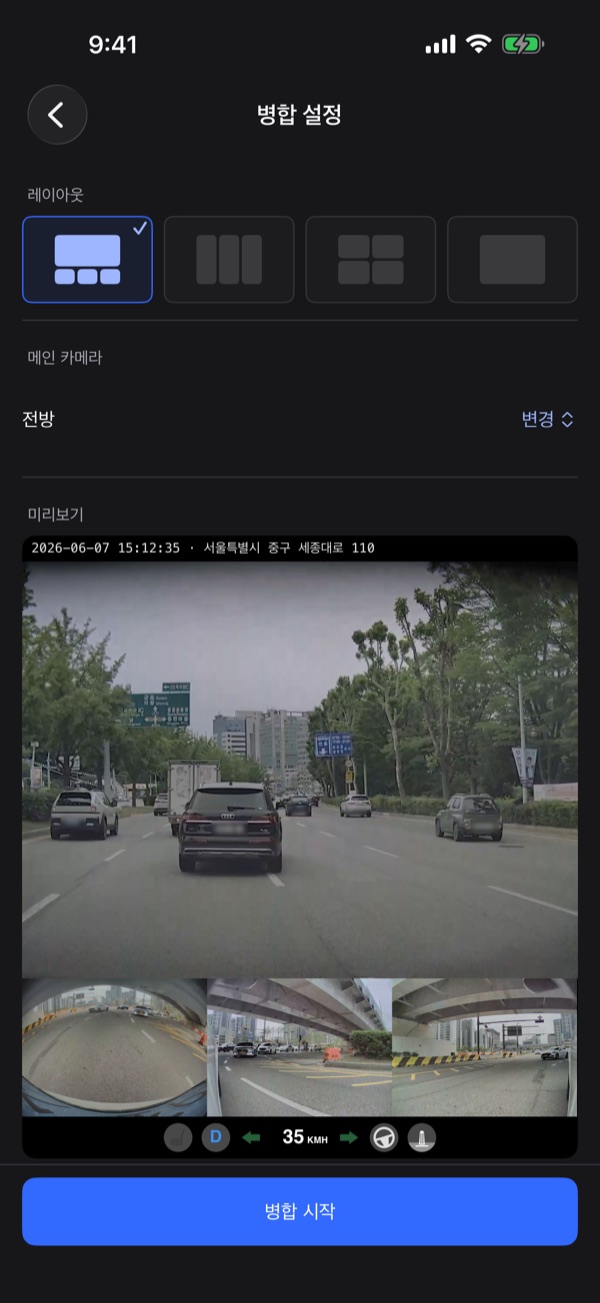
Merge settings병합 설정

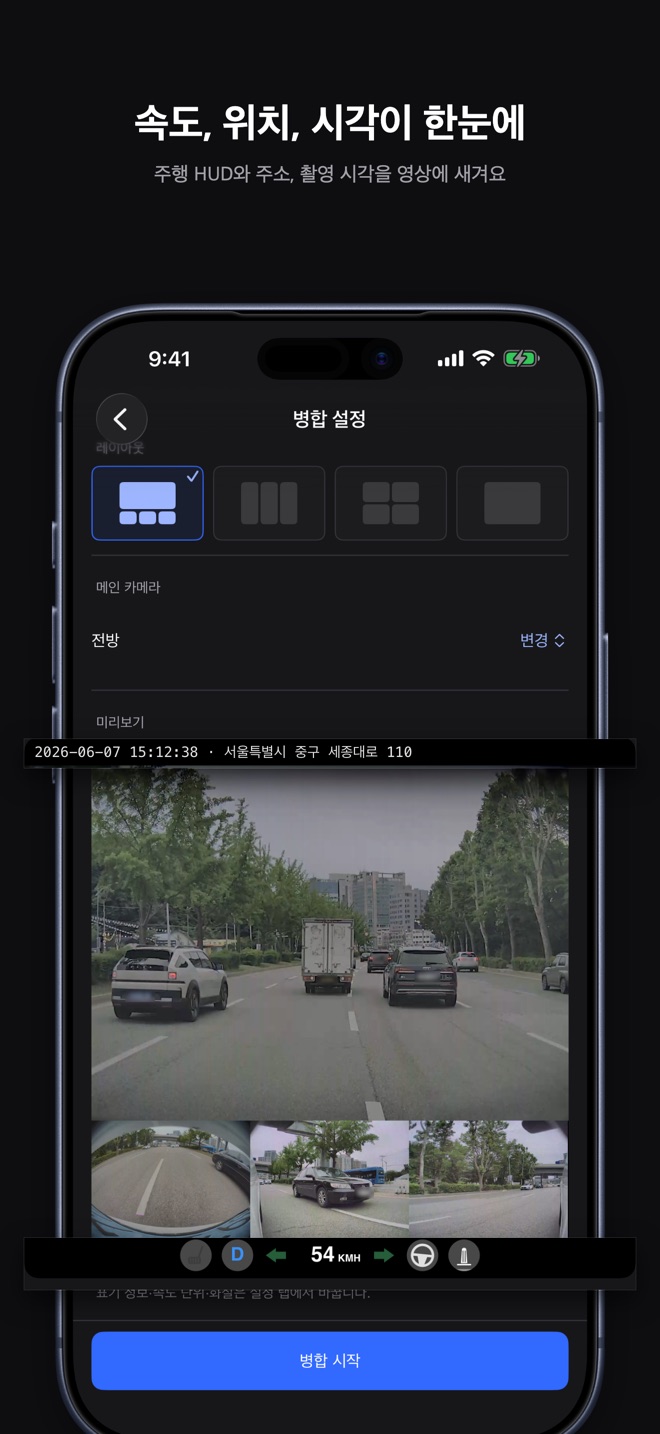
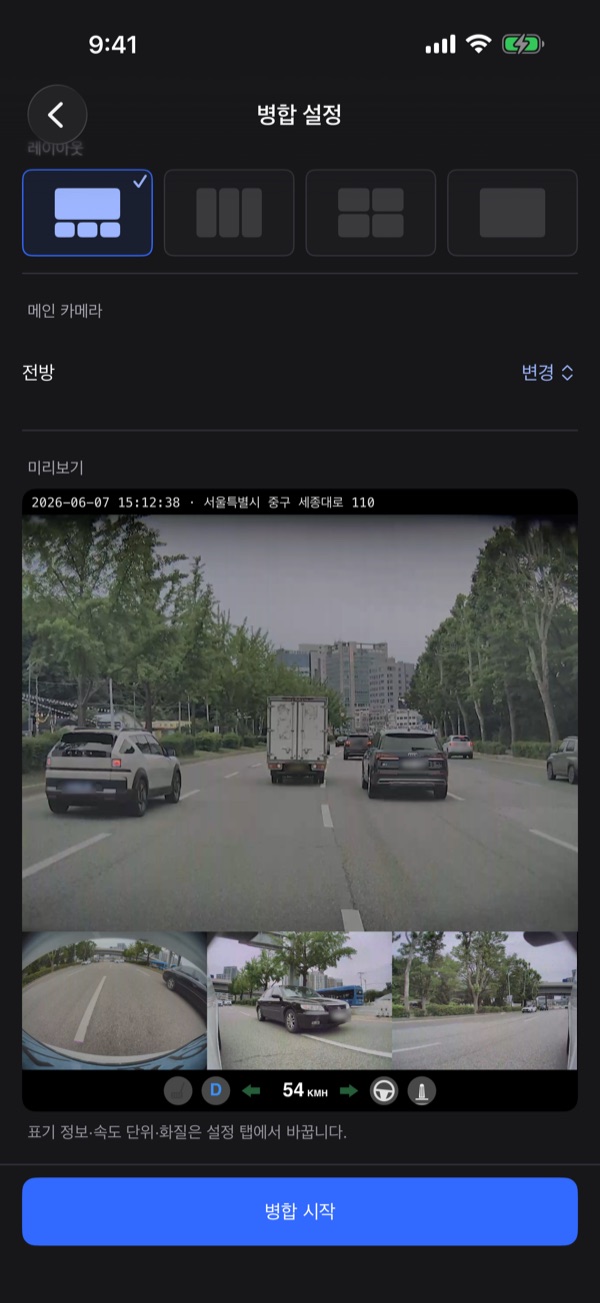
Pick one of four layouts and the main camera. The preview loops your selection so you can check the result before merging.

네 가지 레이아웃 중 하나와 메인 카메라를 고릅니다. 미리보기가 선택 구간을 반복 재생해 결과를 확인할 수 있습니다.

  • Layouts: 1 + 3, 2 × 2, “3 Across”, and “Single”.레이아웃은 1 + 3, 2 × 2, 「3개 일렬」, 「단독」입니다.
  • “Change” picks the main camera; it's disabled when there's only one.「메인 카메라」는 「변경」으로 바꾸며, 카메라가 하나면 바꿀 수 없습니다.
  • Overlay, speed unit, and quality change in Settings, not here.표기 정보·속도 단위·화질은 이 화면이 아니라 설정에서 바꿉니다.
  • “Start Merge” shows progress and can be cancelled; finishing takes you to the result.「병합 시작」을 누르면 진행률이 보이고 「취소」할 수 있으며, 끝나면 완료 화면으로 넘어갑니다.
Merge settings: layout cards and main camera picker.
1+3 multi-camera preview with timestamp strip and driving HUD.

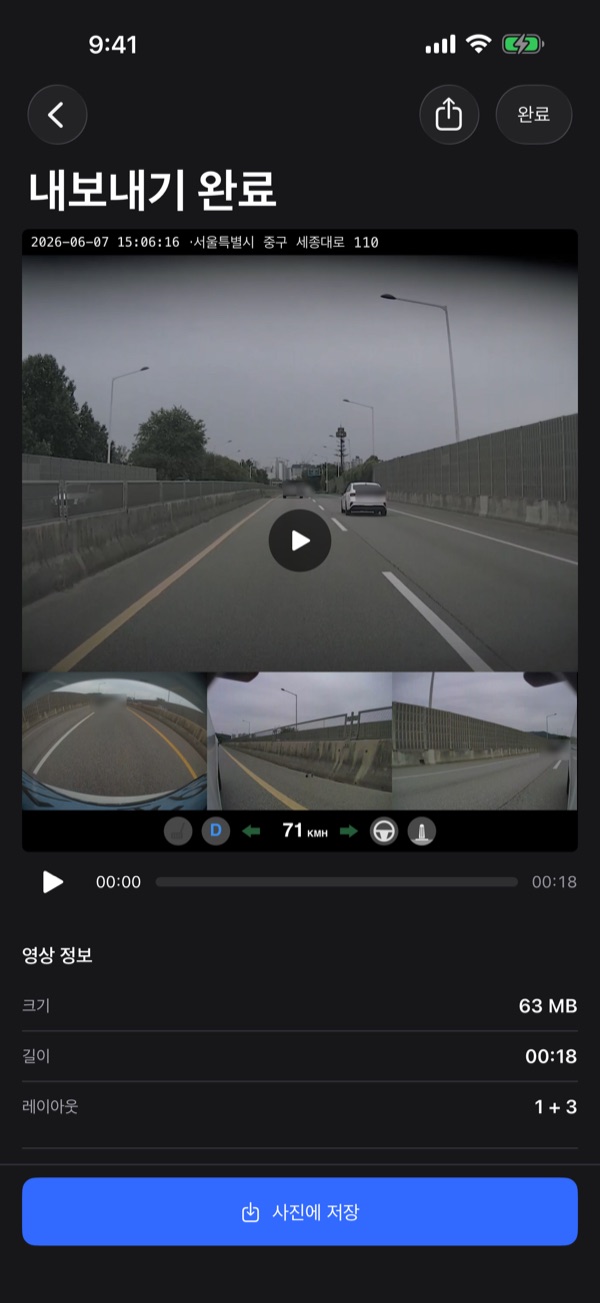
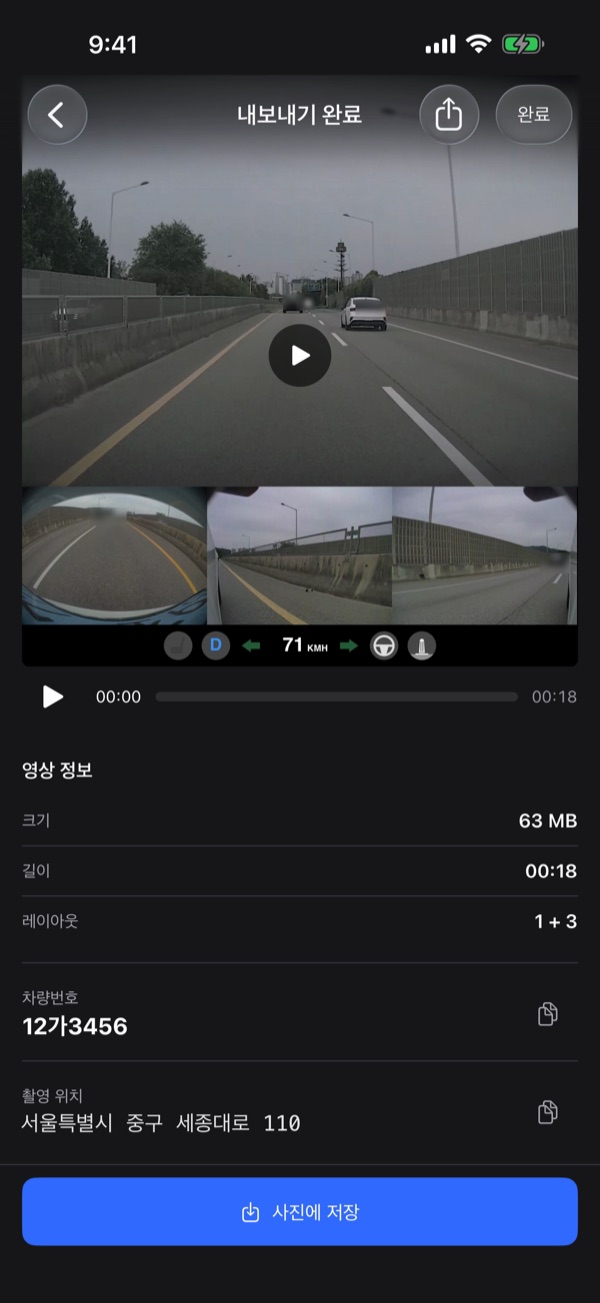
Export complete내보내기 완료

Play the merged video in the app and check its file info before saving or sharing.

합친 영상을 앱 안에서 재생하고 파일 정보를 확인한 뒤 저장하거나 공유합니다.

  • “Video Information” lists size, duration, and layout.「영상 정보」에 크기, 길이, 레이아웃이 표시됩니다.
  • When available, the recognized “License Plate” and the “Recording Location” address each have a copy button.인식한 「차량번호」와 대표 주소 「촬영 위치」는 있을 때 옆의 복사 버튼으로 복사할 수 있습니다.
  • “Save to Photos” adds a copy to the Photos app; “Share” sends the MP4 through the system share sheet.「사진에 저장」은 사진 앱에 복사본을 추가하고, 「공유」는 시스템 공유로 MP4를 보냅니다.
Export complete: result video with size, duration, and layout.
Export details: recognized plate number and recording location, ready to copy.

Saved videos저장한 영상

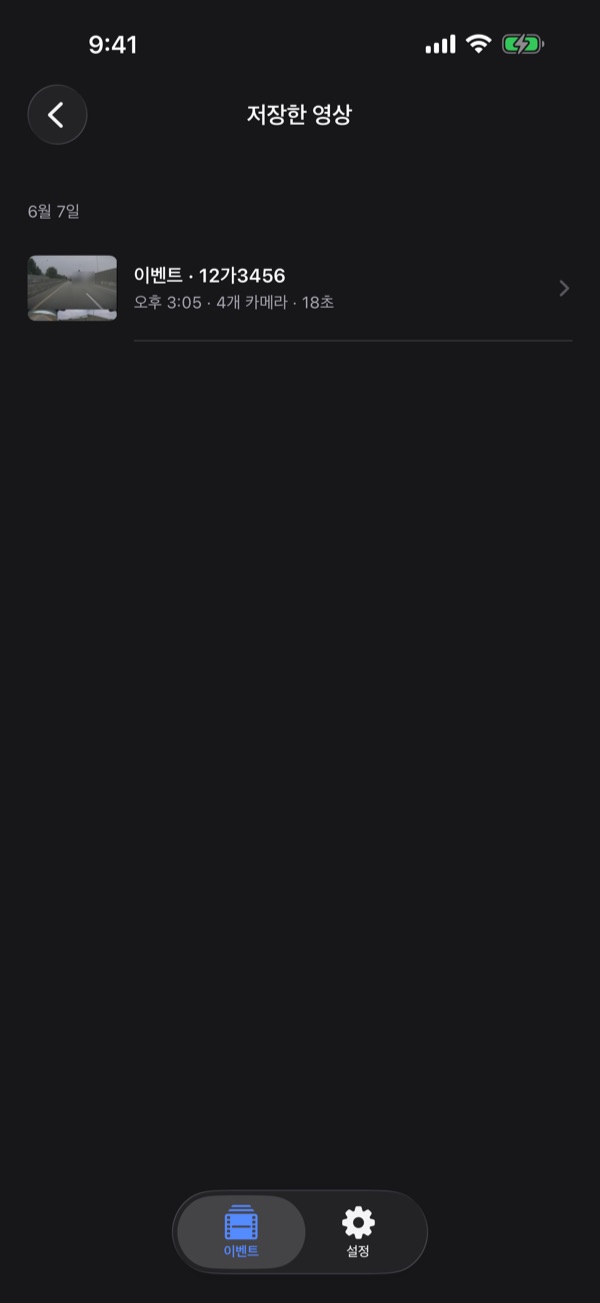
Exported MP4s collect in the app, grouped by date, and play back in the detail view.

내보낸 MP4가 앱 안에 날짜별로 모이고, 상세에서 다시 재생할 수 있습니다.

  • Rows show the thumbnail, time, camera count, and duration, with the plate in the title when one was recognized.행에 썸네일, 시각, 카메라 수, 길이가 나오고 번호판이 있으면 제목에 함께 보입니다.
  • The detail view shows “Size” and “Duration” plus “Layout” and “Saved At”.상세에서는 「크기」와 「길이」에 더해 「레이아웃」과 「저장 시각」을 볼 수 있습니다.
  • Swipe to “Delete” and confirm “Delete This Video?”; only the app's copy is removed, and copies in Photos stay.밀어서 「삭제」하면 「이 영상을 삭제할까요?」 확인 창이 뜨고, 앱 안 파일만 지워집니다. 사진 앱에 저장한 사본은 남습니다.
Saved videos list with thumbnail, time, camera count, and duration.

Settings설정

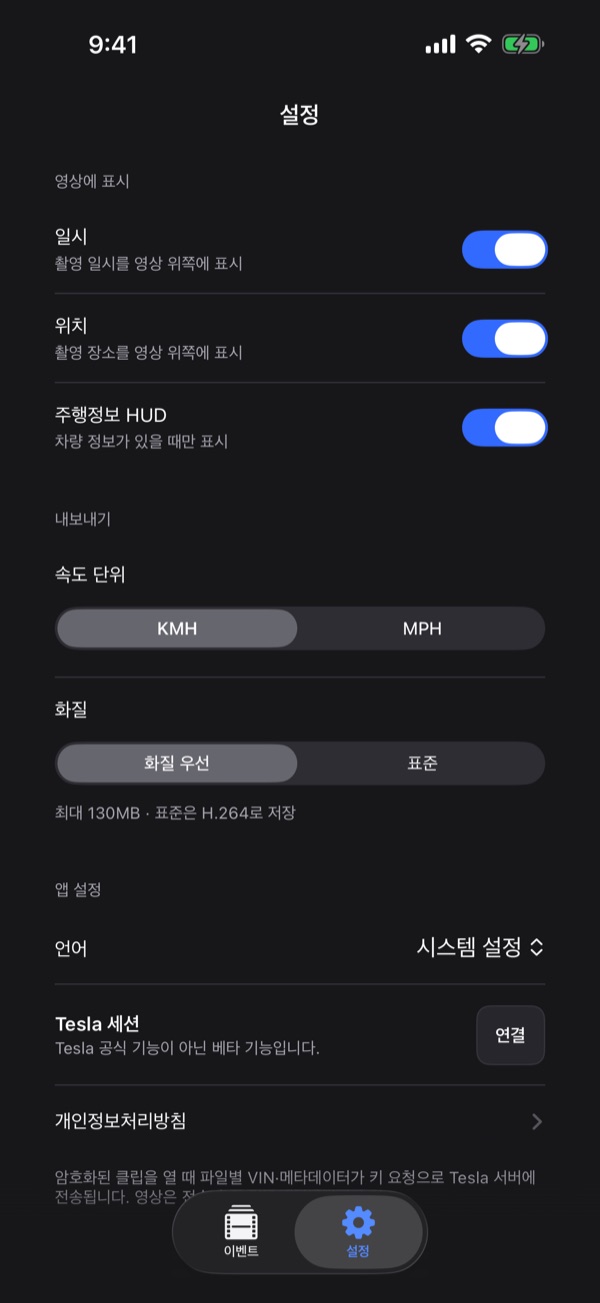
Choose what gets burned into the video and how it's shown.

영상에 새길 정보와 표시 방식을 정합니다.

  • “Video Overlays” toggles “Date & Time”, “Location”, and “Driving HUD” (all on by default).「영상에 표시」에서 「일시」, 「위치」, 「주행정보 HUD」를 켜고 끕니다(기본 켜짐).
  • “Driving HUD” stamps brake, gear, turn signal, speed, steering, and accelerator below the video. It appears only when driving data is available.「주행정보 HUD」는 브레이크·기어·방향지시등·속도·핸들·가속 페달을 영상 아래에 새깁니다. 차량 정보가 있을 때만 표시됩니다.
  • Under “Export”, choose the “Speed Unit” (KMH/MPH) and “Quality” (“Best Quality” or “Standard”; Standard uses H.264). “Language” is under “App Settings”.「내보내기」에서 「속도 단위」(KMH/MPH)와 「화질」(「화질 우선」/「표준」, 표준은 H.264로 저장)을 고르고, 「언어」는 「앱 설정」에서 고릅니다.
  • “Tesla Session” shows the connection state and lets you “Connect”; “Privacy Policy” opens inside the app. The app has no disconnect button.「Tesla 세션」에서 연결 상태를 보고 「연결」할 수 있으며, 「개인정보처리방침」은 앱 안에서 엽니다. 앱에는 연결 해제 버튼이 없습니다.
Settings: video overlays, export options, language, and Tesla session.

Opening encrypted clips암호화 클립 열기

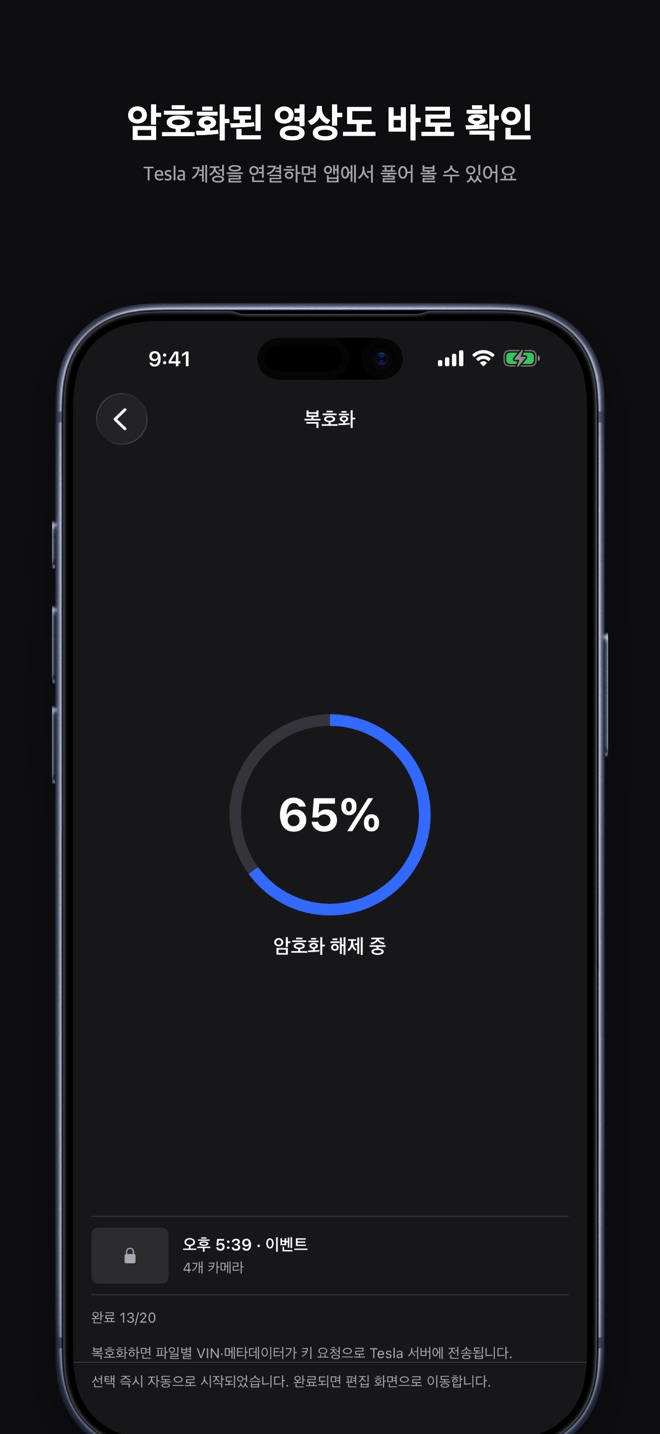
Connect your Tesla account to unlock encrypted events in the app. As the app itself puts it, this is a “Beta feature, not an official Tesla feature.”

Tesla 계정을 연결하면 암호화된 이벤트를 앱 안에서 풀어 볼 수 있습니다. 앱에서도 「Tesla 공식 기능이 아닌 베타 기능입니다.」라고 안내합니다.

  • Tapping an encrypted event shows “Tesla Account Required”; “Connect” opens a Tesla web sign-in sheet.암호화 이벤트를 누르면 「Tesla 계정 연결 필요」 안내가 뜨고, 「연결」로 Tesla 웹페이지 로그인 시트가 열립니다.
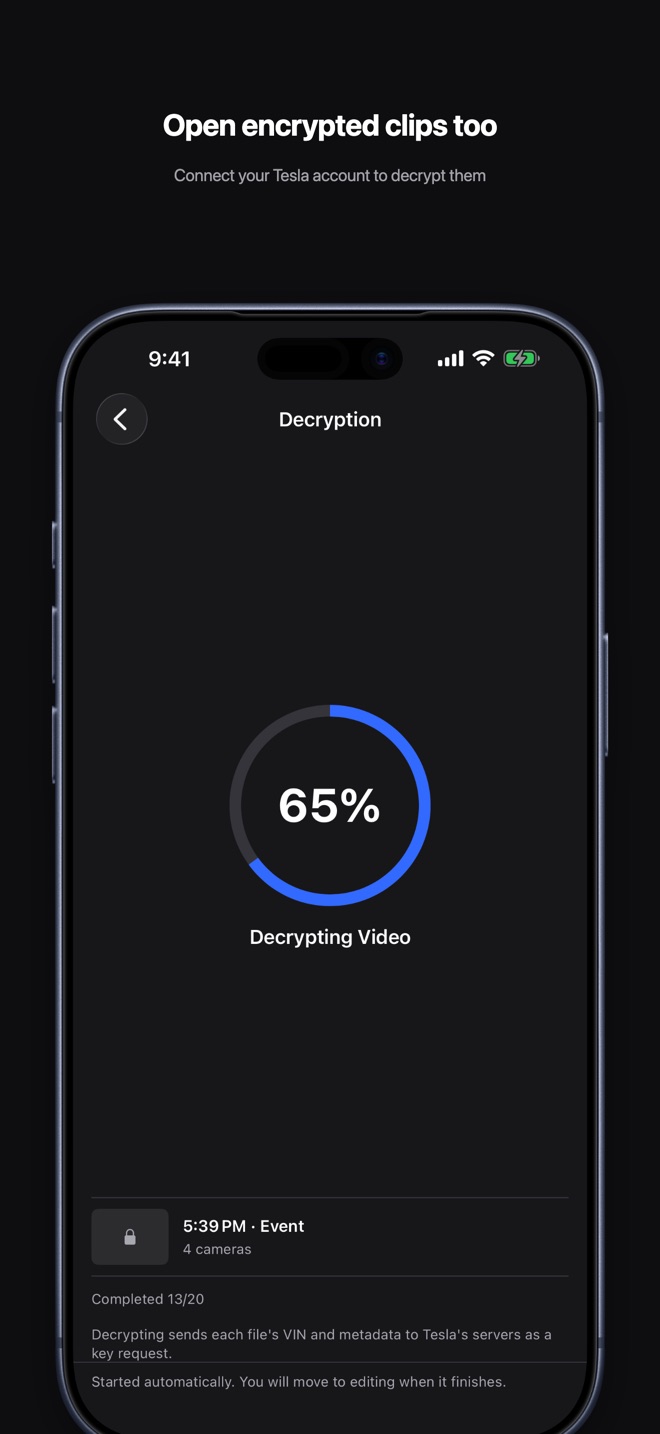
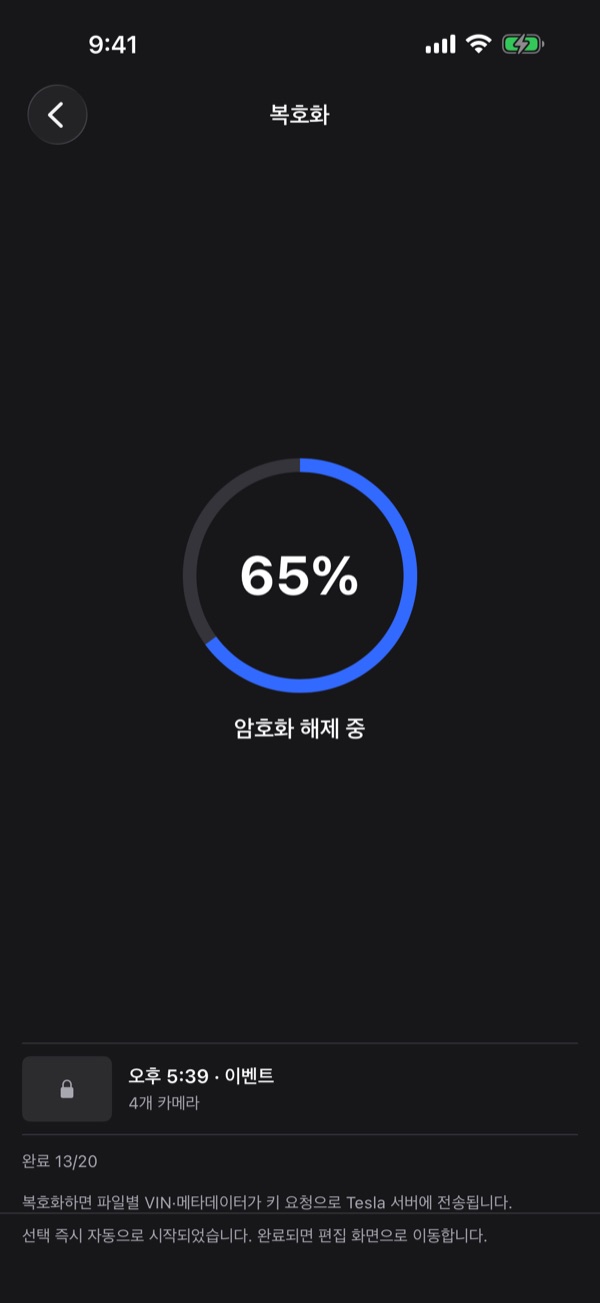
  • Once signed in, decryption resumes and shows progress (“Completed …/…”).로그인이 끝나면 복호화가 다시 시작되고 「완료 …/…」 진행 상황이 보입니다.
  • “Decrypting sends each file's VIN and metadata to Tesla's servers as a key request.” Videos aren't sent.「복호화하면 파일별 VIN·메타데이터가 키 요청으로 Tesla 서버에 전송됩니다.」 영상은 보내지 않습니다.
  • Files are unlocked on the device with the returned keys, and the event opens in the editor.받은 키로 기기 안에서 풀고, 끝나면 편집 화면으로 이동합니다.
Decryption in progress: progress ring and files completed

Plates and addresses shown on these screens are examples.화면에 보이는 번호판과 주소는 예시입니다.

Privacy개인정보

Your videos are never uploaded to Sunny J Lab. Maps and address lookup use Apple's map service.

영상은 Sunny J Lab에 업로드되지 않습니다. 지도 표시와 주소 변환에는 Apple 지도 서비스를 사용합니다.

Opening encrypted clips sends each file's VIN and metadata to Tesla's servers as a key request; the videos themselves aren't sent. The Tesla sign-in token stays in memory only. The sign-in session stays on the device until you delete the app. If the location item is on, the address is written into the exported video.

암호화된 클립을 열 때는 파일별 VIN·메타데이터가 키 요청으로 Tesla 서버에 전송되며, 영상은 전송되지 않습니다. Tesla 로그인 토큰은 기기 메모리에만 둡니다. 로그인 세션은 기기에 남으며, 앱을 삭제하면 함께 지워집니다. 위치 표기를 켜면 주소가 내보낸 영상에 새겨집니다.

Read the privacy policy개인정보처리방침 보기

Pricing가격

Pay once, use everything한 번 구매하면 모든 기능 사용

US$6.99 · South Korea ₩9,900

9,900원 · 미국 US$6.99

Pay once when you download. No free trial, no subscription, no ads, no in-app purchases.

내려받을 때 한 번만 결제합니다. 무료 체험, 구독, 광고, 인앱 결제가 없습니다.

  • The price shown on the App Store takes precedence and may vary by country or region.실제 가격은 App Store에 표시된 가격이 우선합니다. 국가·지역에 따라 다를 수 있습니다.
  • You can download it again with the same Apple account.같은 Apple 계정으로 다시 내려받을 수 있습니다.
  • Refunds are handled by Apple at reportaproblem.apple.com.환불은 Apple(reportaproblem.apple.com)에서 처리합니다.

FAQ자주 묻는 질문

Which videos can it open?어떤 영상을 열 수 있나요?

Saved clips (the SavedClips folder) only. Sentry clips (SentryClips) and recent clips (RecentClips) are not supported.

저장된 클립(SavedClips 폴더)만 열 수 있습니다. 감시 모드 클립(SentryClips)과 최근 클립(RecentClips)은 지원하지 않습니다.

What if a clip won’t open?클립이 열리지 않으면 어떻게 하나요?

The clip may be encrypted. Sign in to Tesla on the web page inside the app, then open the clip again. If it still won’t open, email us at the address below.

암호화된 클립일 수 있습니다. 앱 안의 Tesla 웹페이지에서 로그인한 뒤 다시 열어 보세요. 그래도 열리지 않으면 아래 이메일로 알려 주세요.

Does the app file the report for me?앱이 신고까지 해 주나요?

No. The app prepares the video and, if you use plate recognition, the plate number. You submit the report yourself.

아니요. 앱은 신고에 쓸 영상과, 번호판 인식을 쓴 경우 번호를 준비해 줍니다. 신고는 직접 제출해야 합니다.

Where does location data go?위치 정보는 어디로 가나요?

The app uses only coordinates recorded in the video. Showing the map and looking up addresses use Apple’s map service. If the location item of the info strip is on, the address is written into the exported video and goes with it when you share it. Videos are not uploaded to Sunny J Lab.

앱은 영상에 기록된 좌표만 사용하며, 지도 표시와 주소 변환에는 Apple 지도 서비스를 사용합니다. 정보 띠의 위치 항목을 켜면 주소가 내보낸 영상에 들어가므로, 영상을 공유하면 주소도 함께 전달됩니다. 영상은 Sunny J Lab으로 업로드되지 않습니다.

If you see “Can't open the saved folder. Connect the drive and select the folder again.”「저장된 폴더를 열 수 없습니다. 드라이브를 연결하고 폴더를 다시 선택하세요.」가 보이면

Reconnect the USB drive, then pick the folder again with “Change Folder”. This message appears when the saved folder permission has expired or the drive isn't attached.

USB 드라이브를 연결한 뒤 「폴더 변경」으로 폴더를 다시 선택해 주세요. 저장해 둔 폴더 접근 권한이 오래됐거나 드라이브가 없을 때 나타납니다.

If you see “No saved events (SavedClips) found in this folder.”「이 폴더에서 저장된 이벤트(SavedClips)를 찾지 못했습니다.」가 보이면

Check that you picked the TeslaCam folder. The app reads only events inside SavedClips; SentryClips and RecentClips are not shown.

TeslaCam 폴더를 골랐는지 확인해 주세요. 앱은 SavedClips 안의 이벤트만 읽으며 SentryClips와 RecentClips는 표시하지 않습니다.

If you see “The 130 MB limit allows up to 507 seconds. Shorten the selection.”「130MB 한도 안에서 최대 507초까지 가능합니다. 구간을 줄여 주세요.」가 보이면

The selection is too long to stay under 130 MB. Drag the trim handles inward until the limit message clears.

선택한 구간이 130MB 한도를 넘을 때 나타납니다. 트림 바의 양끝 핸들로 구간을 줄여 주세요.

If you see “Photo library access isn't allowed. Allow it in the Settings app.”「사진 보관함 접근이 허용되지 않았습니다. 설정 앱에서 허용해 주세요.」가 보이면

Allow photo library access for ClipDashcam in the iPhone Settings app, then tap “Save to Photos” again.

iPhone 설정 앱에서 ClipDashcam의 사진 보관함 접근을 허용한 뒤 「사진에 저장」을 다시 눌러 주세요.

If you see “Connect your Tesla account to decrypt encrypted videos.”「암호화된 영상을 복호화하려면 Tesla 계정을 연결해야 합니다.」가 보이면

Tap “Connect” and sign in on the Tesla web page; decryption then restarts. This is a beta feature, not an official Tesla feature.

「연결」을 눌러 나오는 Tesla 웹페이지에서 로그인하면 복호화가 다시 시작됩니다. 이 기능은 Tesla 공식 기능이 아닌 베타 기능입니다.

Support지원

Having trouble with ClipDashcam for Tesla, or have a question? Send us an email.ClipDashcam for Tesla 사용 중 문제가 있거나 궁금한 점이 있으면 이메일로 알려 주세요.

Bug report오류 신고

Including the items below helps us find the problem faster.아래 항목을 함께 적어 주시면 더 빨리 확인할 수 있습니다.

  • Device model기기 모델
  • iOS versioniOS 버전
  • App version앱 버전
  • Screen where the problem happened문제가 생긴 화면
  • Steps to reproduce재현 순서
  • Whether the clip is encrypted암호화 클립 여부
  • Expected and actual result기대한 결과와 실제 결과

The app doesn't show a version number. Find the version in Settings > General > iPhone Storage (iPad Storage on iPad) > ClipDashcam.앱 안에는 버전 표시가 없습니다. 설정 > 일반 > iPhone 저장 공간(iPad는 iPad 저장 공간) > ClipDashcam에서 버전을 볼 수 있습니다.

Write a bug report 오류 신고 메일 작성

If you attach a screenshot or video, please hide plates, addresses, and the VIN. What you send is used only to handle your inquiry and is kept or deleted under the privacy policy.캡처나 영상을 첨부할 때는 번호판·주소·차량 식별번호(VIN)가 보이지 않게 가려 주세요. 보내 주신 정보는 문의 처리에 쓰이며 개인정보처리방침에 따라 보관·파기합니다.